Tesla Phone Key Setup and Troubleshooting Guide
May 24, 2026 by evadmin
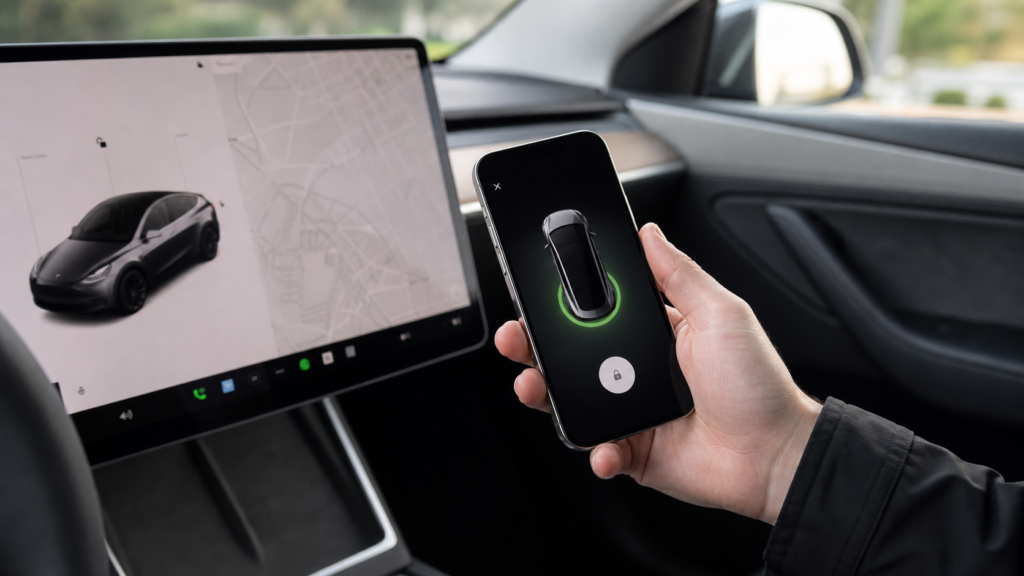
Tesla phone key is one of the best ownership features once it is set up correctly. Your phone can unlock the car, start the car, load your driver profile, and make daily use feel almost keyless. But when phone key is not working, it can be frustrating because the issue may be Bluetooth, app permissions, phone settings, driver profiles, or the Tesla app itself.
This guide covers the setup flow and the most common fixes for Tesla phone key problems.
Quick Answer
To set up Tesla phone key, install the Tesla app, sign in, enable Bluetooth, sit in the vehicle with your key card, and follow the app and vehicle prompts to pair the phone. If phone key is unreliable, check Bluetooth, Tesla app permissions, background app refresh, phone battery settings, vehicle locks settings, and whether the phone is assigned to the correct driver profile.
What Phone Key Does
Phone key lets your Tesla recognize your phone as an authorized key. When it works correctly, you can walk up to the car, open the door, press the brake, and drive without pulling out a physical key card. The key card is still important as a backup, but phone key is what most owners use daily.
Basic Setup Checklist
- Install the Tesla app and sign in to the account that owns or has access to the vehicle.
- Enable Bluetooth on your phone.
- Allow the Tesla app to use Bluetooth and location permissions if prompted.
- Keep the Tesla key card with you during setup.
- Open the Tesla app and follow the phone key pairing prompts.
- Test locking, unlocking, and driving before relying on phone key alone.
Pair Phone Key With Driver Profile
One of the best parts of a Tesla is that the car can load the right driver profile automatically. That means seat position, mirrors, steering wheel, and preferences can follow the driver. After phone key is working, assign that phone key to the correct driver profile inside the vehicle settings.
This is especially important in a household with two drivers. If both phones are paired but profiles are not assigned clearly, the car may load the wrong position or feel inconsistent.
Bluetooth, Contacts, Messages, And Audio
Phone key and Bluetooth audio are related but not identical. You can have a phone paired as a key and also pair it for calls, contacts, messages, and streaming audio. During setup, decide which features you want enabled.
- Calls: Allows hands-free phone calls through the vehicle.
- Contacts: Lets the vehicle show your contacts for calling.
- Messages: Can allow message sync and notifications if enabled.
- Audio: Lets you stream music, podcasts, and other media from your phone.
If privacy matters, only enable the features you actually want. For example, some owners want phone key and audio but do not want message sync.
Phone Key Not Working: Common Fixes
- Make sure Bluetooth is on.
- Open the Tesla app and confirm the vehicle appears normally.
- Check that the Tesla app has Bluetooth permission.
- Check location permission if your phone requires it for Bluetooth behavior.
- Disable aggressive battery optimization for the Tesla app.
- Restart the Tesla app.
- Restart the phone.
- Toggle Bluetooth off and back on.
- Remove and re-pair phone key if the problem continues.
- Keep your key card with you until the issue is fixed.
iPhone Tips
On iPhone, make sure Bluetooth is enabled and the Tesla app has the permissions it requests. If phone key becomes unreliable after an iOS update, restart the phone, open the Tesla app, and test again before deleting and re-pairing.
Android Tips
On Android, battery optimization can be a common cause of unreliable phone key behavior. If Android restricts background activity for the Tesla app, the car may not recognize the phone as quickly. Check app battery settings and allow the Tesla app to run normally in the background.
When To Use The Key Card
Always keep a key card available, especially when traveling, after getting a new phone, after a major phone update, or when letting someone else drive the car. Phone key is convenient, but the key card is the simple backup that keeps a small tech issue from becoming a big problem.
Related Video Guide
We also have a hands-on guide for new Tesla owners that covers phone key, driver profile, Bluetooth, contacts, messages, and audio streaming: New Tesla Owner? Set This Up First.
Final Takeaway
Phone key is one of the features that makes a Tesla feel different from a traditional vehicle. Set it up carefully, pair it with the right driver profile, enable only the Bluetooth features you want, and keep your key card as a backup. Once configured correctly, phone key becomes one of the best everyday Tesla conveniences.