Cybertruck Summon Guide: Setup, Safety, and What Owners Should Know
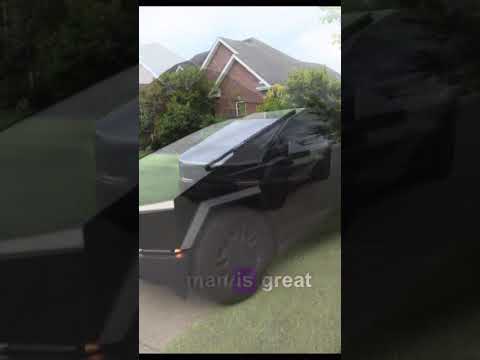
Cybertruck Summon Is Here, but Availability Matters
Tesla has begun bringing Summon capability to eligible Cybertrucks through software updates. The feature can move the truck to you or reposition it over a short distance, but it is a driver-supervised convenience feature, not autonomous valet parking.
Availability can vary by region, vehicle hardware, Tesla app version, Full Self-Driving package or subscription status, and vehicle software. If you do not see Summon yet, confirm that the truck and phone app are current before assuming something is wrong.
What the Videos Demonstrate
The first video shows the feature in action and gives Cybertruck owners a quick look at what to expect. This second clip provides another view of the release:
Combining both clips here gives owners one useful reference instead of publishing two nearly identical articles.
Before You Try Summon
- Update the Tesla app on your phone.
- Confirm the Cybertruck is running a software version that includes the feature.
- Check that phone key and Bluetooth are working normally.
- Use a private, open area for the first test.
- Walk around the truck and check for low objects, curbs, posts, trailers, pets, and people.
- Keep the vehicle in view and remain ready to stop it immediately.
How to Find the Feature
When Summon is available for the vehicle and account, it should appear in the Tesla app’s vehicle controls. Follow the app prompts and read every warning before initiating movement. App layout and feature names can change, so use the instructions shown for your current version.
Important Safety Limits
Summon requires active supervision. Cameras can be affected by darkness, glare, rain, snow, dirt, condensation, faded markings, narrow clearances, and objects that are difficult to detect. Do not use it on public roads, around fast-moving traffic, in crowded areas, or anywhere you cannot clearly monitor the truck.
The Cybertruck is large and its corners can be difficult to judge. Start with generous clearance. Do not assume the truck will recognize every curb, pole, overhang, chain, loading dock, or low obstacle.
Good First Test
- Choose an empty, flat parking area.
- Clean the cameras if needed.
- Stand where you can see the full vehicle and intended path.
- Begin with a short, straight movement.
- Release or stop the control immediately if the path becomes uncertain.
- Repeat only after you understand how the truck responds.
Is Cybertruck Summon Useful?
The most realistic use is moving the truck through a short, uncomplicated path when you can supervise it directly. It may help in a tight parking situation or demonstrate how Tesla is extending software features across its lineup. It should not be treated as a substitute for careful parking or direct control.
Troubleshooting
- If the option is missing, verify app and vehicle software versions.
- Confirm eligibility and any required FSD package or subscription in your account.
- Check phone connectivity, Bluetooth, and permissions.
- Move to an open area with a strong cellular connection.
- Review any warning displayed in the app before trying again.
Buying a Tesla?
Current referral benefits change over time. Check the offer before ordering and apply the referral during the order process.
Check the EV Gear Guide Tesla Referral
Final Takeaway
Summon arriving on Cybertruck is an interesting software milestone, but the right mindset is supervised convenience. Test it slowly, maintain line of sight, understand the limitations, and be ready to stop the truck at all times.
Source
Feature behavior can change with software. Always follow the current instructions and warnings in the official Cybertruck Owner’s Manual and Tesla app.