New Tesla Owner Checklist: 12 Settings to Change First
Quick Take
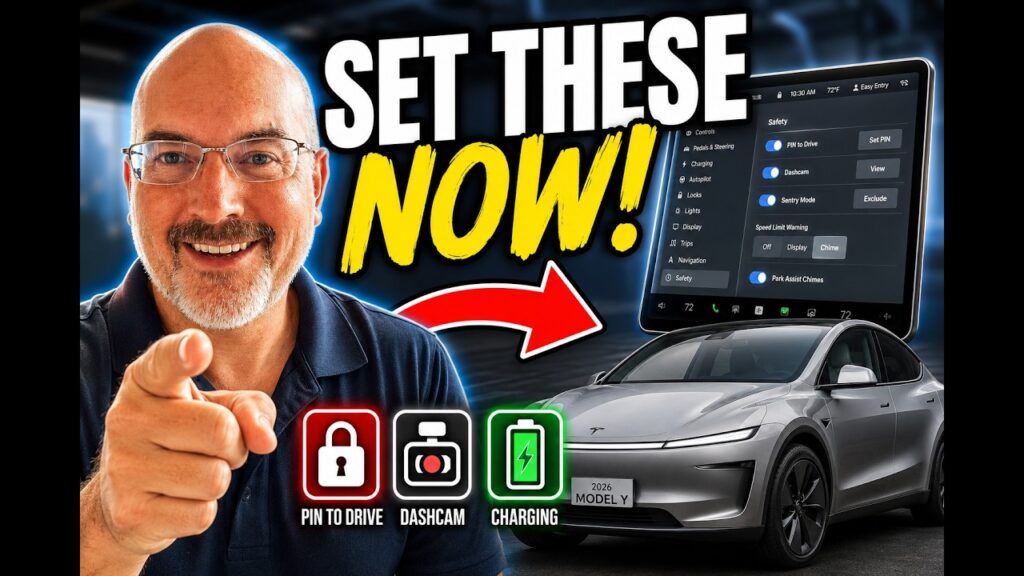
A new Tesla is easy to drive, but several important settings deserve attention before it becomes your everyday vehicle. This checklist walks through 12 settings that improve security, charging convenience, driver comfort, recording, and software reliability.
The menu names can move slightly as Tesla updates its software. Use the video above with the written checklist below, and confirm each setting in your vehicle before relying on it.
1. Set Up Phone Key and Keep a Key Card Backup
Pair your phone through the Tesla app, test that it unlocks the vehicle, and confirm you can shift into drive. Keep a key card in your wallet or another secure location. A phone can lose power, Bluetooth can be disabled, or app permissions can change after an operating-system update.
For the complete process, see our Tesla phone key and Bluetooth setup guide.
2. Create Driver Profiles and Easy Entry
Save seat, steering wheel, and mirror positions to each driver profile. Assign each phone key to the correct profile so the vehicle knows who is approaching. Easy Entry can move the seat and steering wheel when entering or leaving, but set it conservatively and confirm that every driver is comfortable with the movement.
3. Enable Walk-Away Door Lock
Walk-Away Door Lock is one of Tesla’s best daily conveniences. Turn it on, then test it at home and in a parking lot. Listen for the confirmation sound or check the Tesla app until you are confident the vehicle is locking reliably.
4. Consider PIN to Drive
PIN to Drive adds a second layer of protection by requiring a numeric code before the vehicle can be driven. Choose a PIN that is not easy to guess and do not share it casually. This setting is especially worth considering for owners who park outdoors or want protection beyond phone-key security.
5. Confirm Dashcam Recording
Check that the vehicle recognizes its USB storage and that the Dashcam icon appears without an error. Learn how to save a clip manually. Recording availability can depend on the installed storage device and current software, so verify it before assuming an incident was captured.
6. Configure Sentry Mode
Sentry Mode can monitor activity around a parked Tesla, but it also uses additional energy. Decide whether to exclude home, work, or favorite locations, and review the privacy and local-law considerations for recording in your area.
7. Add Home and Work Locations Carefully
Saved locations improve navigation, charging estimates, and scheduled features. If privacy matters, consider saving a nearby intersection instead of your exact address. Verify that navigation recognizes your regular destinations correctly.
8. Review the Daily Charge Limit
Open the charging screen and follow the recommendation displayed for your specific vehicle and battery. Tesla uses different battery chemistries, so there is no single daily percentage that is correct for every Tesla. Set a limit that covers normal driving and increase it before longer trips when needed.
9. Schedule Charging and Preconditioning
Scheduled charging can move energy use to lower-rate hours, while preconditioning can warm or cool the cabin before departure. If your utility offers time-of-use pricing, compare its rate window with the schedule in the Tesla app. Test the schedule once before depending on it for a commute.
10. Set the Liftgate Opening Height
In a low garage, manually position the liftgate at a safe height and save that position according to the on-screen or owner-manual instructions. Check clearance before opening it near garage doors, pipes, shelving, or low ceilings.
Also see our Model Y hands-free trunk setup guide.
11. Customize Touchscreen Shortcuts
Place the controls you use most in easy reach. Common choices include defrost, cameras, wipers, seat heaters, and frequently used media controls. A small amount of customization reduces menu hunting while driving.
12. Connect Wi-Fi and Check Software Updates
Connect the vehicle to reliable Wi-Fi where it normally parks. Review the software-update preference and allow enough time for an update before a trip. The vehicle cannot be driven during installation, so do not begin an update when you need to leave shortly.
Recommended New-Owner Gear
- 3W floor mats – use coupon MITCHCOXVIDEOS and verify the current discount.
- Model Y roof sunshade on Amazon.
- Model Y center console organizer on Amazon.
- 40-amp portable charger on Amazon.
As an Amazon Associate and affiliate partner, EV Gear Guide may earn from qualifying purchases at no extra cost to you.
Buying a Tesla?
Referral benefits can change, so verify the current offer before ordering. A referral generally must be applied before checkout and cannot simply be added afterward.
Use the EV Gear Guide Tesla Referral Link
Final Checklist
- Phone key tested and key card carried.
- Driver profile assigned to the correct phone.
- Security and recording settings confirmed.
- Charge limit and schedule reviewed.
- Liftgate height checked.
- Wi-Fi connected and updates understood.
Spend a few minutes on these settings before settling into daily use. They make the vehicle easier to live with and reduce the chance of discovering an important setting only when you urgently need it.
Source
Features vary by model, region, configuration, and software version. Confirm current instructions in the official Tesla Model Y Owner’s Manual.